

Workday Enrollment
Visit Workday to complete your benefits enrollment.
Workday is your portal for managing all benefit elections. Each benefit type appears in its own section, making it easy to review and update your choices.
Before You Enroll
Review the accuracy of your personal data, including your dependent, beneficiary, and mailing address information. Reviewing this information in advance will save you time once you’re ready to enroll for your Hexcel benefits. Click on the Benefits worklet to make changes to Dependents and/or Beneficiaries. Click on the Personal Information worklet and select Address Changes to update your mailing address.
NOTE: If you want to elect an Health Savings Account or Flexible Spending Account, you must enroll each year. Elections for these plans do not carry over into the next plan year.
Getting Started: Follow These Steps
- Begin your enrollment through Workday.
- If you do not have access to a computer at home or at work, your local HR representative will direct you to a kiosk where you can enroll in your benefits.
- Your inbox will contain an action item advising you to enroll in your benefits.
Download the Mobile App
The Workday mobile app keeps your personal and work information secure using industry-standard security protocols and strict privacy standards. To get started, download the app from the App Store or Google Play and log in with the same credentials you use on your computer. If your device supports it, you can enable biometric login for faster, more secure access.
With the Workday app, you can view pay slips, access tax documents, check balances, and request time off. If you’re a manager, you can also approve requests, manage tasks, and view team data. While some features may be limited compared to the desktop version, the app makes it easy to take care of essential actions wherever you are.
Benefit Plan “Cards”
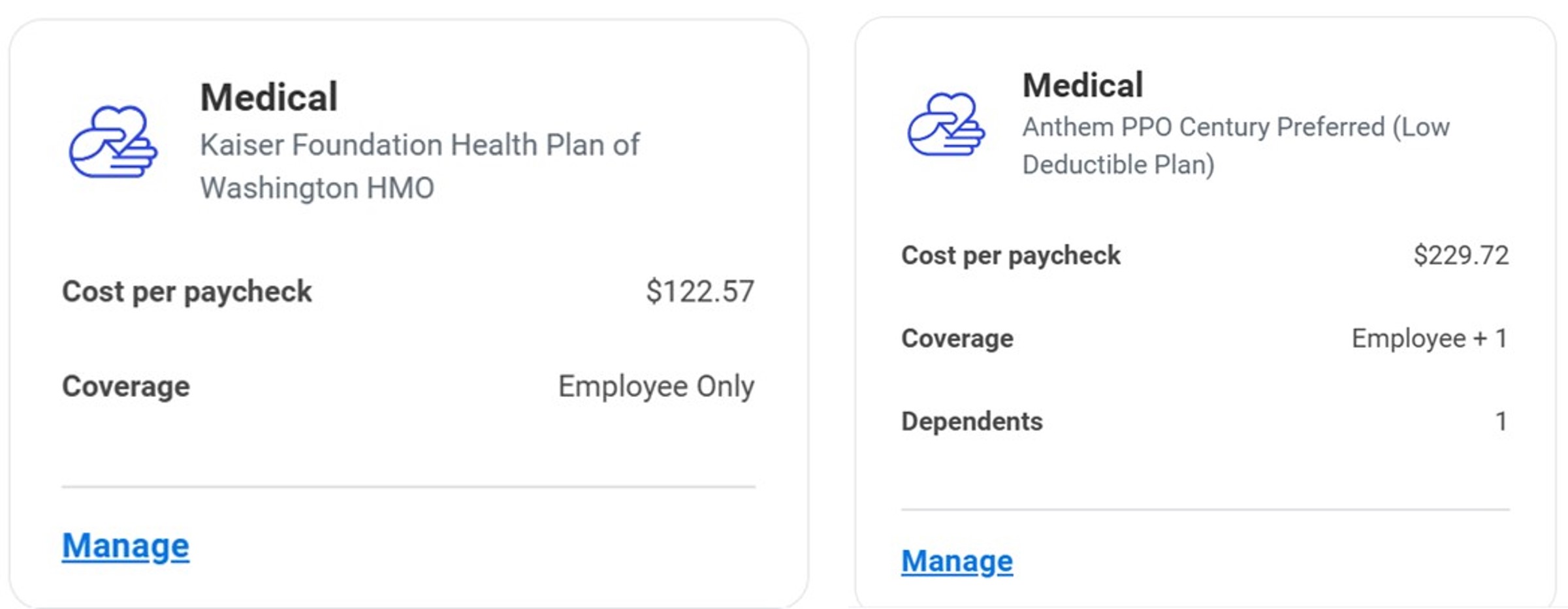
Plan enrollment options are in a “card” format. You can review your current enrollments, select specific cards for items you wish to change, or enroll in new plans as needed. Each card will display instructions and links to tip sheets to help you complete the process. Once you have completed enrollment with a card, you can select Confirm and Continue to continue your selections with another “card.”
Once you have completed all your elections, you can select Review and Sign or Save for Later at the bottom of the main page.
- Clicking Save for Later will save your benefit elections if you decide to return and submit your elections later.
- Clicking Review and Sign will bring you to the summary of your elections for final submission.
Once you have selected Review and Sign, please review your elections summary. If correct, check I Agree and click Submit. Your elections will not be finalized until this step is completed. Click View Benefits Statement to download a PDF copy of your elections for printing.
To make a change after you submit your elections (as long as your new hire window or the Annual Enrollment window is still open), click on the Benefits worklet on the Workday homepage. Then click on the box labeled Change Annual Enrollment.